

Microsoft 365, Intune, Entra, Azure
Cloud Service Models
1.
Software as a Service (SaaS) (eg. Microsoft 365, Salesforce CRM, Slack, Dropbox)
2.
Platform as a Service (PaaS) (eg. Apps Service, SQL database, AWS Lambda, Google App Engine, Heroku)
3.
Infrastructure as a Service (IaaS) (eg. Microsoft Azure, Amazon EC2, Google Compute Engine)

IT Admin Accounts
"Best Practice" Structure
Standard User
Daily work, checking email, browsing the web, logging into Windows (Zero admin rights)
Synced (AD → Cloud)
user@company.com
Local Admin
Managing Active Directory servers, creating OUs, joining local computers to the domain
On-Premises Only (Not Synced)
user.adm@ad.company.com
Cloud Admin
Managing Microsoft 365, assigning licenses, adjusting Entra ID/Intune cloud settings
Cloud Only (No AD link)
user.cloud@company.com
Microsoft 365
User Self-Service
Microsoft Entra
Licensing
Free (Included in Azure or M365) - Basic identity and access management
P1 (Included in 365 E3, F1/F3) - Conditional Access, hybrid identity, dynamic groups, and enterprise-grade management features
P2 (Included in 365 E5) - Identity Protection, Privileged Identity Management (PIM), access reviews, and advanced governance
Education (A1 = Free, A3 ≈ P1, A5 ≈ P2)
Entra AD Connect
Entra ID Free ← Communication ← Local AD DS
Entra P1, P2 ↔ Communication ↔ Local AD DS
Microsoft Entra
Active Directory Domain Services (AD DS)
Cloud-based identity solution (PaaS)
On-prem hierarchical directory service (Windows Server)
Users and groups in a flat structure (no OUs or GPOs)
Includes Objects, Organizational Units (OUs) and GPOs
Uses REST API + HTTPS protocols (e. SAML, OpenID, OAuth)
Authentication with Kerberos and management via LDAP
Based on HTTP/HTTPS (ports 80 and 443)
Uses DNS to locate/manage resources
Federation between organizations (Multi-tenant service)
Uses trusts between domains for delegated management
Supports SSO and federation with third parties (e. Facebook)
Enables Multi-factor Authentication
Create UPN Suffix (Active Directory Domains and Trusts)
Update UPN Suffix for all the users
Update Email:
user@mydomain.com
Attribute Editor (ProxyAddresses)
Role-Based Access Control RBAC
Security Groups vs 365 Groups
Members
- Users
- Devices
- Service principals
- Users
- Devices
- Service principals
Members
- Users only (internal + guests)
- Users only (internal + guests)
Purpose
- Control access to resources and apply policies
- Control access to resources and apply policies
Purpose
- Enable collaboration across Microsoft 365 services
- Enable collaboration across Microsoft 365 services
Key Concepts
- Used for permissions, access control, and policy targeting
- Can be assigned, dynamic user, or dynamic device
- Work with Intune, Azure RBAC, Conditional Access, SharePoint, Teams
- Do not create shared collaboration resources
- Can contain users, devices, service principals
- Used for permissions, access control, and policy targeting
- Can be assigned, dynamic user, or dynamic device
- Work with Intune, Azure RBAC, Conditional Access, SharePoint, Teams
- Do not create shared collaboration resources
- Can contain users, devices, service principals
Key Concepts
- Provide a shared workspace for collaboration
- Automatically create:
- Shared mailbox
- Shared calendar
- SharePoint site
- Planner plan
- OneNote notebook
- Teams team (if created from Teams)
- Always user‑based (no devices)
- Support assigned and dynamic user membership
- Integrated deeply with Teams, SharePoint, Outlook, Planner
- Provide a shared workspace for collaboration
- Automatically create:
- Shared mailbox
- Shared calendar
- SharePoint site
- Planner plan
- OneNote notebook
- Teams team (if created from Teams)
- Always user‑based (no devices)
- Support assigned and dynamic user membership
- Integrated deeply with Teams, SharePoint, Outlook, Planner
Common Uses
- Assign Intune device configuration profiles
- Apply Conditional Access policies
- Grant access to Azure resources
- Control access to apps (Enterprise Apps)
- Organize devices (dynamic device groups)
- Assign Intune device configuration profiles
- Apply Conditional Access policies
- Grant access to Azure resources
- Control access to apps (Enterprise Apps)
- Organize devices (dynamic device groups)
Common Uses
- Create a Microsoft Teams team
- Provide a shared mailbox for a department
- Create a shared SharePoint site
- Organize project‑based collaboration
- Create a Microsoft Teams team
- Provide a shared mailbox for a department
- Create a shared SharePoint site
- Organize project‑based collaboration
Examples
- “Windows 11 Laptops – Dynamic Device Group”
- “Finance Department – Access Control”
- “Intune – BitLocker Policy Target Group”
- “Windows 11 Laptops – Dynamic Device Group”
- “Finance Department – Access Control”
- “Intune – BitLocker Policy Target Group”
Examples
- “Marketing Team” (Teams + SharePoint + Planner)
- “Project Phoenix” (collaboration workspace)
- “HR Communications” (shared mailbox + SharePoint)
- “Marketing Team” (Teams + SharePoint + Planner)
- “Project Phoenix” (collaboration workspace)
- “HR Communications” (shared mailbox + SharePoint)
Device Identity and Management
Microsoft Entra = Identity & Trust
Microsoft Intune = Management & Configuration
Microsoft Intune
Cloud-based endpoint management solution
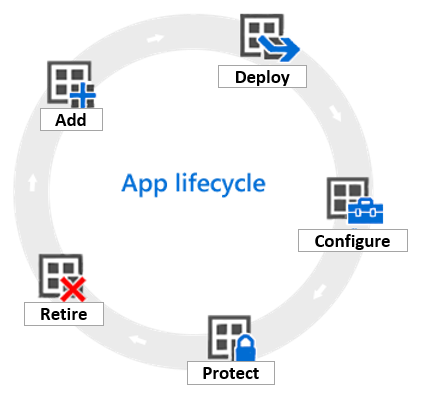
Enroll > Configure > Protect > Retire

Supported Devices
Windows 10/11 (Home, Pro, Education, S mode, and Enterprise versions)
Windows 10/11 Cloud PCs on Windows 365
Windows 10 IoT and Windows 10 Holographic
Windows 10 2019 LTSC
Surface Hub
Windows 10 Teams (Surface Hub)
Apple iOS/iPadOS 14.0 and later
macOS 11.0 and later
Android 8.0 and later, including Samsung KNOX Standard 3.0 and higher
Linux Ubuntu Desktop (22.04 LTS or later on x86/64)
Chrome OS
Enrolling Devices
Methods (Windows Devices)
Join Type
Intune Enrollment
Who Enrolls
Ownership
Windows Sign‑In
Autopilot?
Typical Use Case
Registered
No (unless auto‑MDM)
User
BYOD
Local account
No
Personal devices, app access
Registered
✔️ Yes
User
BYOD or Corporate
Local account
No
Corporate devices not Entra Joined
Joined
✔️ Yes
User
Corporate
Entra ID
No
New corporate devices
Joined
✔️ Yes
User
Corporate
Entra ID
✔️ Yes
Standard Autopilot deployment
Joined
✔️ Yes
No user
Corporate
No user login
✔️ Yes
Kiosks, shared devices
Registered
✔️ Yes
DEM account
Corporate
Local account
No
Bulk enrollment, retail, labs
AD Joined or Hybrid
✔️ Yes
IT / ConfigMgr
Corporate
AD credentials
No
Transition from ConfigMgr to Intune
Joined
✔️ Yes
IT (PPKG)
Corporate
Entra ID
No
Labs, shared devices, offline provisioning
Hybrid
Optional
AD + Entra Connect
Corporate
AD credentials
No
Hybrid identity environments
Joined
✔️ Yes
Technician
Corporate
Entra ID (user later)
✔️ Yes
Pre‑staging devices before shipping
Compliance
(BitLocker, Secure Boot, Antivirus, etc)
Configuration Profiles
Push Settings — Replacing GPOs
(Examples)
Standard device lock - Password and lock screen policies
Windows Update Ring (Lifecycle Management)
OS version requirements
Require Secure Boot / TPM
Wi‑Fi profile (corporate network)
Scripts and Remediations
(Common use cases)
Install legacy Win32 apps - Download installers, Run silent installs, Apply custom switches, Validate installation
Configure settings not available in Intune profiles - Registry edits, Custom PowerShell commands, Local policy changes
Remediate configuration drift - Detect misconfigurations, Automatically fix them, Report compliance status
Automate device cleanup and maintenance - Clear temp files, Reset app caches, Remove bloatware, Clean stale profiles, Reset Windows Update components
Deploy custom security hardening - Modify Defender settings, Configure firewall rules, Apply ASR rules, Enforce TLS settings
Manage local users and groups - Creating local admin accounts, Removing local admin rights, Rotating passwords, Managing RDP permissions
Automate app updates - Check installed versions, Download updates, Apply patches, Remove outdated versions
Perform device inventory and reporting - Installed software lists, Hardware details, Custom logs, Registry values
Trigger advanced Autopilot actions - Force Autopilot reset, Re‑register hardware hash, Trigger ESP diagnostics, Collect Autopilot logs
Fix issues that Intune cannot fix natively - Resetting Windows Update, Repairing the Start menu, Fixing broken Store apps, Re‑registering system components, Repairing WMI
Application Management (MAM)
Download application in MSI format file (GPO cannot install exe files)
Create network share (repo) for all the MSI packages > Grant read access (Domain Computers, Domain Users)
GPO: Computer Configuration > Policies > Software Settings > Software installation (New: \\Server\DistributionFolder\PackageFolder\Package.msi) - Assigned
gpupdate /force or restart
Store app
Microsoft 365 apps
Web link
Built-in app
Line-of-business (LOB) app
Windows app (Win32)
Autopilot for Modern Deployment
1.
Obtaining the hardware IDs of the devices that you want to deploy to the cloud service.
2.
Uploading the hardware IDs
3.
Creating a Windows Autopilot deployment profile.
4.
Applying the Windows Autopilot deployment profile to the devices or device groups.
Microsoft Graph PowerShell
Single gateway (API) to connect to Microsoft cloud — Entra ID, Exchange, SharePoint, Teams, and Intune.
(PowerShell as Administrator)
# Install Microsoft Graph PowerShell SDK
Install-Module -Name Microsoft.Graph -Scope CurrentUser
# Connecting to Microsoft cloud
Connect-MgGraph -Scopes "User.Read.All", "Group.ReadWrite.All", "Device.ReadWrite.All"
Connect-MgGraph -Scopes "User.ReadWrite.All", "Group.ReadWrite.All", "Device.ReadWrite.All" # (Use with caution)
# Verify connectivity
Get-MgContext
# Sync On-Prem AD to Entra - Connect to the tenant
Connect-MgGraph -Scopes "OnPremDirectorySynchronization.ReadWrite.All"
# Force AD Synchronization without waiting the cycle
Start-ADSyncSyncCycle -PolicyType Delta
Start-ADSyncSyncCycle -PolicyType Initial
# Close pipeline connection (Disconnect safely)
Disconnect-MgGraph
# CSV sample Users.csv
| UserName | FirstName | LastName | DisplayName | JobTitle | Department | MailNickname |
|--------------------------|-----------|----------|------------------|-----------|------------|--------------|
| bcheaper@abrstudio.site | Brian | Cheaper | Brian Cheaper | Manager | Management | bcheaper |
| cfiu@abrstudio.site | Chris | Fiu | Chris Fiu | Director | Operations | cfiu |
| mvanhaist@abrstudio.site | Matthew | Vanhaist | Matthew Vanhaist | President | Executive | mvanhaist |
UserName,FirstName,LastName,DisplayName,JobTitle,Department,MailNickname
bcheaper@abrstudio.site,Brian,Cheaper,Brian Cheaper,Manager,Management,bcheaper
cfiu@abrstudio.site,Chris,Fiu,Chris Fiu,Director,Operations,cfiu
mvanhaist@abrstudio.site,Matthew,Vanhaist,Matthew Vanhaist,President,Executive,mvanhaist
# Connect to Entra ID
Connect-MgGraph -Scopes "User.ReadWrite.All"
# Load the CSV file
$users = Import-Csv -Path "C:\path\to\your\Users.csv"
# Process each user line-by-line (backticks space errors)
foreach ($user in $users) {
New-MgUser -UserPrincipalName $user.UserName `
-GivenName $user.FirstName `
-Surname $user.LastName `
-DisplayName $user.DisplayName `
-JobTitle $user.JobTitle `
-Department $user.Department `
-MailNickname $user.MailNickname `
-UsageLocation "CA" `
-AccountEnabled $true `
-PasswordProfile @{ForceChangePasswordNextSignIn = $true; Password = "TemporaryPassword123!"}
}
# Process each user line-by-line (No backticks required!)
foreach ($user in $users) {
# Bundle parameters in a clean list
$userParams = @{
UserPrincipalName = $user.UserName
GivenName = $user.FirstName
Surname = $user.LastName
DisplayName = $user.DisplayName
JobTitle = $user.JobTitle
Department = $user.Department
MailNickname = $user.MailNickname
UsageLocation = "CA"
AccountEnabled = $true
PasswordProfile = @{
ForceChangePasswordNextSignIn = $true
Password = "TemporaryPassword123!"
}
}
# Run the command using the splatted parameters
New-MgUser @userParams
}
Microsoft Azure
Microsoft Learn